 zerqith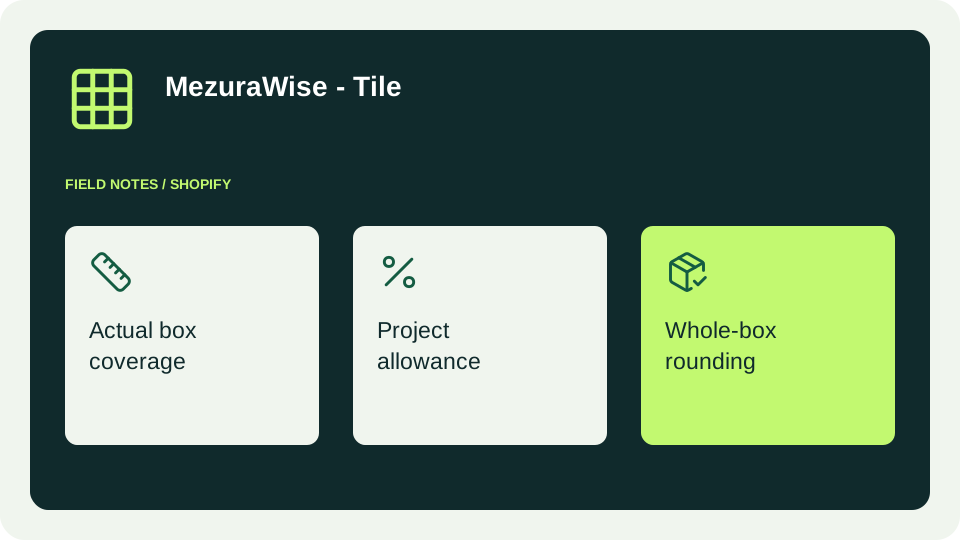
A useful tile estimate depends on three decisions: what a box covers, how much additional material to allow and where to round the result. Getting those decisions right is more useful than displaying extra decimal places.
1. Use coverage for the actual sold box
Read the manufacturer’s packaging information for the selected product or variant. If it states coverage per box, enter that coverage and its unit. When no published coverage is available, accurate tile dimensions and pieces per box let the calculator derive an estimate.
Do not copy the same specifications across a product family without checking packaging. A finish, format or variant can change the number of pieces or the area in a box. Review saved unit changes carefully because changing the unit label does not convert an existing numeric value.
2. Explain the allowance
An allowance increases the measured area before the final box calculation. For 120 ft² with 10% allowance, the target is 132 ft². Ten percent is an example, not a universal recommendation: the right allowance depends on layout, cuts, breakage and installer advice.
Avoid promising that any one percentage guarantees enough material. The calculator helps a shopper understand a purchasing estimate; it does not inspect the project site. Use the product’s instruction text to make that distinction clear.
3. Round to a purchasable quantity
A store selling whole boxes cannot fulfill 10.2 boxes as though it were a whole-box order. With manufacturer coverage, the calculator rounds the target area divided by coverage up to a whole box. Without that coverage figure, it rounds the required pieces and then the required boxes.
Multi-room projects introduce another decision: inspect the room-level breakdown instead of assuming separate room estimates will equal a combined-area calculation. On supported plans, the calculator makes the rounding breakdown visible.
A quick storefront check
Choose a known room area and calculate the expected result independently. Compare it with the product page, change the shopper unit and confirm the physical result is consistent. Switch variants, then add to cart. If one Shopify quantity does not represent one box, keep quantity synchronization off.
Use the setup guide to review product fields and the troubleshooting steps. Revisit this check whenever the supplier changes packaging or coverage.